
SuperStation One: a step-by-step Console Mode setup guide
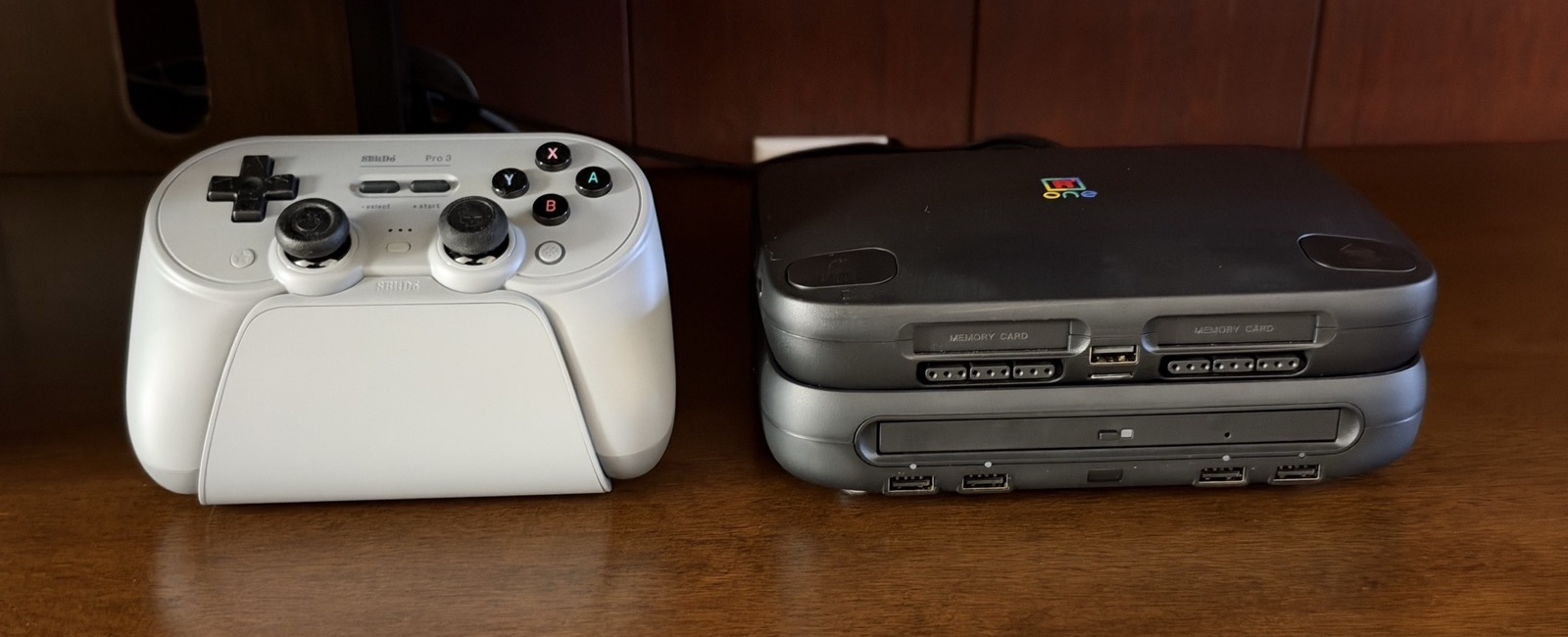
I've now set up two SuperStation One consoles. Once you've done it, the steps are straightforward. Getting there means piecing together information from several places.
There are plenty of quick start videos, and the documentation exists, but I wanted a simple written walkthrough. Download this. Copy that here. Turn it on. Something you can follow without pausing a video to figure out which file just went where.
Here's a straightforward walkthrough of a fresh Console Mode installation, through the first run of update_all.
These steps are current as of the SuperStation 1.2.0 Console Mode SD card image. Filenames and menus may change in later releases.
Before you start
Have these ready:
- Your SuperStation One and an SD card.
- A computer with an SD card reader.
- An HDMI display and cable.
- A suitable USB-C Power Delivery power supply and cable. The SS1 documentation recommends 9V/3A.
- A supported USB controller and, preferably, a USB keyboard for setup.
- Your Wi-Fi network name and password.
Writing the image erases the SD card. If you've already used the card, copy anything you want to keep to your computer first, including games, saves, and savestates.
This guide uses HDMI and keeps the initial setup on the SD card. Get that working before adding external storage or changing analog video settings.
1. Download the Console Mode image
Open the official SuperStation SD Card Installer releases.
Expand Assets under the latest release. Download the file with ConsoleMode in its name. For the v1.2 installer, that's:
SuperStation_1.2.0-ConsoleMode.img.zip
The similarly named SuperStation_1.2.0.img.zip installs the standard MiSTer interface. Choose the Console Mode image for this guide.
Extract the ZIP on your computer so you have the .img file ready to write.
2. Write the image to the SD card
Write the image with a tool such as balenaEtcher or Rufus. Both are supported by Retro Remake's installer directions. If you already have an image-writing tool you prefer, use that.
For example, with balenaEtcher:
- Insert the SD card into your computer.
- Open balenaEtcher and choose Flash from file.
- Select the extracted Console Mode
.imgfile. - Choose Select target and select your SD card. Check the card's capacity so you don't select another drive.
- Choose Flash and wait for writing and validation to finish.
- Safely eject the card.
Flashing writes the bootable image and its partitions. Copying the .img onto the card as an ordinary file won't do it.
3. Let the SS1 finish installing
- With the SS1 powered off, insert the card.
- Connect HDMI, your controller, and power.
- Turn it on and let the automatic installer finish. Leave it powered on while it's working.
- Wait for Console Mode to load.
Do this first boot before copying the updater files. The image still has an installation step to complete on the SS1.
Once you're at the menu and the installer has finished, power off the SS1 and put the card back in your computer.
4. Copy the updater files
Download these two things:
- Update All ZIP. Extract it and find
update_all.sh. - Retro Remake's recommended downloader.ini. Save the actual file as
downloader.ini.
Open the card's main data volume, where you can see folders such as games and Scripts. Copy update_all.sh into Scripts. Copy downloader.ini to the top level of the card, beside those folders.
The relevant files should look like this:
SD card/
    downloader.ini
    Scripts/
        update_all.sh
downloader.ini goes at the root of the card. Check that your browser hasn't saved it as downloader.ini.txt or as a web page. If this fresh installation already has a downloader.ini, replace it with the recommended file. Preserve any custom settings if you're adapting these steps for an existing setup.
Open it in a plain text editor and confirm this setting is under [MiSTer]:
update_linux = false
The recommended configuration includes this setting to prevent the updater from replacing Linux with a build that can break SS1 functionality. Leave it set to false.
Safely eject the card and put it back in the powered-off SS1.
5. Connect to Wi-Fi
Turn the SS1 on. In Console Mode, open Settings > Sound & Connectivity > Network. Select your network and enter its password.
If you need to map your controller, use Settings > Input > Controls. A USB keyboard is useful while you're getting the controls sorted out. These menus are covered in the Console Mode guide.
6. Run update_all
- Open Settings > Developer Tools > Scripts & CD and select
update_allfrom the scripts list. - When its countdown appears, press Up on your controller or keyboard to open the updater's settings.
- Review the enabled downloads. Extra cores, tools, and content are optional. Enable the BIOS download option under Extra Content if you want the updater to fetch missing BIOS files.
- If you see Linux Updates under System Options, keep it Off. This updater setting controls the
update_linuxoption you checked earlier. - Select SAVE to keep your choices, then start the update.
- Let it finish. Follow any completion or restart prompts before turning off the SS1.
The Update All instructions explain the countdown and settings screen. The first run can take a while, depending on your connection and what you've enabled.
7. Update Console Mode itself
Console Mode has its own updater: Settings > System > Update Console Mode. Use it to check for a newer version of the interface and follow the prompts.
The nearby Update entry runs the standard MiSTer update script. To run update_all again, return to the scripts list in step 6. The Console Mode system menu documentation describes the two built-in update entries.
If something doesn't look right
The updater isn't in the scripts list: Check that update_all.sh is inside Scripts, extracted from the ZIP.
You have the standard MiSTer menu immediately after a fresh install: Check the image filename. It should contain ConsoleMode.
An update changed or broke the setup: Check the root-level downloader.ini and confirm update_linux = false. That setting prevents future Linux updates; it doesn't undo an update that already ran.
A game still needs a BIOS: The stock card includes open BIOS replacements, and Update All may leave an existing BIOS in place. The SS1 BIOS troubleshooting notes cover replacing those files. You can also check your files with the MiSTer BIOS checker.